
In case of a broken mainboard and the replacement of the mainboard is necessary then we always recommend to use the MSA tool and the procedure from the board replacement wizard even if you don't have any connection with the old mainboard.
If you don't use the MSA and the board replacement wizard you will not be able to communicate with the MSA and the machine because there will be no serial number installed in the mainboard, the MSA will give you a "check serial number" error.
The below procedure is a workaround to be able to configure the mainboard in the correct way with the PRM file:
1) Start the MSA with no LAN cable connected. In the tab "Setup" select "option" and select the correct printer type with the following LAN setting 192.168.1.253.
| Note: Situation 1:
in case you use the PRM file from the printer than you don't need to follow any steps anymore all parameters will be load with the help of the PRM file taken from the broken mainboard, We still recommend to check the head rank number and correct it if necessary. Situation 2: in case you used a original PRM file received from Mutoh Europe( step 7 until 9 needs also to be performed). |
|
8) Go to the menu "head replace" and correct the head rank number.
The below procedure is a workaround to be able to configure the mainboard in the correct way without the PRM file:
1) Start the MSA with no LAN cable connected. In the tab "Setup" select "option" and select the correct printer type with the following LAN setting 192.168.1.253.
6) In the final step you will be able to enter the serial number of the printer manually.
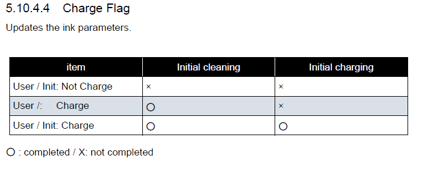
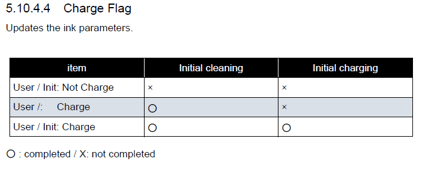
9) go to the menu parameter, update, Charge flag and select the correct configuration so that the printer doesn't ask to load inks.
|
|
For more detailed explanation you can have a look to the MSA training videos on this portal.
|