
Under specific circumstances it might happen that a printer gives an error because it is not properly configured for the correct Ink Type and/or Ink colour configuration. This may occur when the printer "forgets" what kind of ink was charged inside or when a printer had to be loaded with ink in an "unchipped" status.
This will result in a display giving smart-chip related errors. For more details about smart-chip errors, you can check the following fields with the MSA smartchip diagnostic tool: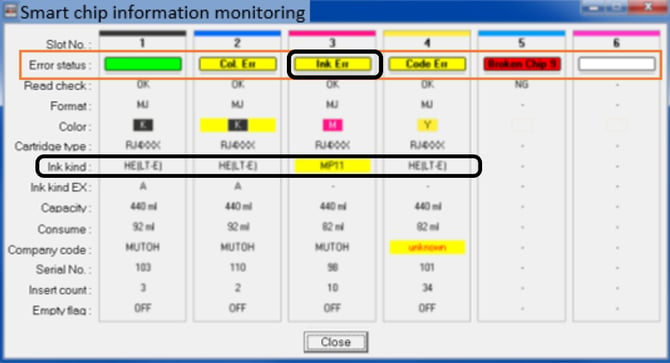
* Please note that this picture is an example and may not represent the ink you have in your own printer
There are a few possible triggers that may cause this phenomenon to happen:
- Electronic failures (e.g. mainboard has become defective)
- Power failures where as a result, printer has lost some parameter settings
- Printer has been switched-off while the initial ink-charge procedure wasn't fully completed (make sure after cleaning to choose "Wash Retry = NO" after the first initial cleaning. If you chose YES, you will get stuck when you have insufficient cleaning to complete the cycle. In that case you will be forced to shut-down the printer manually).
- New printer set-up in an "unchipped" status: this might be needed when chips are defective during intial cleaning or ink load. In this case the printer will not know what ink type/ink colour config is present so it must be set correctly.
In these specific cases the Ink Type must be switched back to the correct setting in order to be able to properly identify the inserted smart-chips (and ink kind) inside the printer.
The normal procedure to switch between different ink types is to perform a "Longstore". This procedure however requires the ink lines to be cleaned with cleaning liquid first in a complete cycle before recharging inks with the correct smart-chips. If you proceed in this way you will be able to solve this problem.
If you are however 100% sure that the correct ink kind is properly charged and only (all) chips are not recognized due to the fact that the printer contains the wrong "Ink Kind" setting, the complete flushing of the printer and ink-recharge is pointless and cumbersome.
Therefore we have devised a procedure which needs to be followed here below in order to be able to resolve the issue without requiring a Longstore and full Ink Charge.
Procedure 1: "Only change Ink Type"
(for printers in which you can change the Ink colour configuration in Diagnostics mode via the Parameter Update function)
- Make sure the printer is on the latest firmware version (for XpertJet SR series: 2.00 or higher)
- Put the printer in Board Manager Mode
- Download the MPI file from the printer with the MSA tool. Send this file to the Mutoh Europe Support Desk (https://support.mutoh.eu) by creating a new support ticket, together with your error description. The Mutoh support will enable the "Chip Trouble" status flag and create a ULK file, which will enable possibility to change the ink type.
- Upload the ULK file you received from Mutoh support desk to your printer (still in Board Manager Mode)
- Reboot the printer in Maintenance & Service mode
- Now you will be able to change the Ink Type in the parameters inside the Maintenance menu
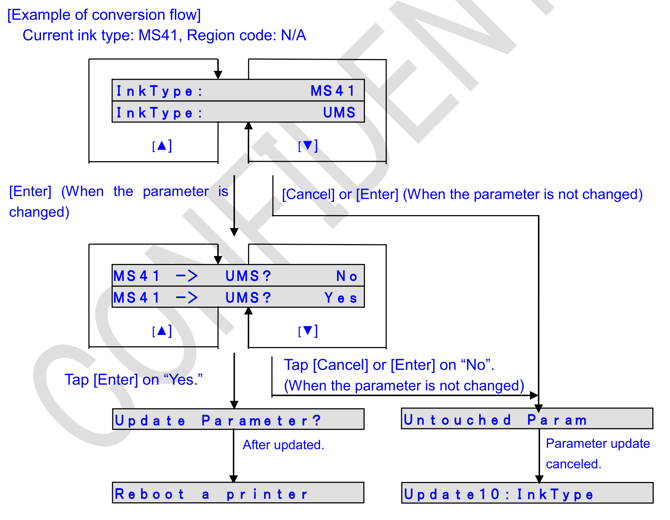
- Once the ink conversion is finalized the printer will request you to reboot. Let the printer boot normally in user mode. When the reboot is completed and the Ink Type conversion is completed the "Chip Trouble" status inside the printer will automatically be disabled.
After successfully completing this procedure, the printer will now recognize the smart-chips and will be ready to print!
The ink type switching is possible on these models with at lease the following firmware (or higher)
** VJ-1638UH: 1.15
** VJ-1638UH2: 1.15
** XPJ-1641SR: 1.04
** XPJ-1682SR: 1.05
** XPJ-461UF: 1.02
** XPJ-661UF: 1.02
Procedure 2: "Change ink type and Ink color configuration"
(for printers in which you cannot change the Ink colour configuration in Diagnostics mode via the Parameter Update function) ==> XPJ-461UF and XPJ-661UF
- Make sure the printer is on the latest firmware version
- Put the printer in Board Manager Mode
- Download the MPI file from the printer with the MSA tool. Send this file to the Mutoh Europe Support Desk (https://support.mutoh.eu) by creating a new support ticket, together with your error description. The Mutoh support will enable the "Chip Trouble" status flag and create a ULK file, which will enable possibility to change the ink type.
- Upload the ULK file you received from Mutoh support desk to your printer (still in Board Manager Mode)
- Reboot the printer in Maintenance & Service mode
- Now you will be able to change the Ink Type and the Ink Configuration in the parameters inside the Maintenance menu.
- Note: when the ink type is already correct you need to push "enter" to get to the next menu in which you can change the ink Config.
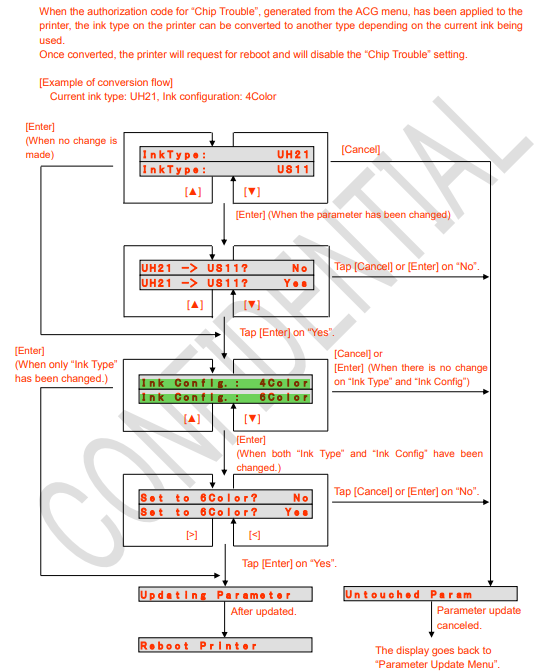
Once the ink conversion is finalized the printer will request you to reboot. Let the printer boot normally in user mode. When the reboot is completed and the Ink Type / Ink Config conversion is completed the "Chip Trouble" status inside the printer will automatically be disabled.
After successfully completing this procedure, the printer will now recognize the smart-chips and will be ready to print!
The ink type and ink config. switching is possible on these models with at lease the following firmware (or higher):
** XPJ-461UF: 1.02
** XPJ-661UF: 1.02