
Setting Up VerteLith with Printer and Cutter Workflows
This guide walks you through the complete workflow for setting up a printer and cutter in VerteLith, linking them, and running a job that includes cut contours.
Step-by-Step Workflow
- Add Devices in VerteLith
- Add your printer and create a corresponding PrintEnvironment.
- Add your cutter and create a CutEnvironment.
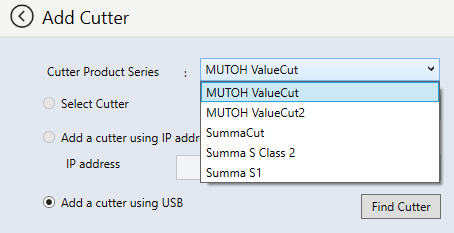
- Configure CutEnvironment
- Inside the CutEnvironment settings, specify the path to your cutting software (e.g., “Summa Cutter Control”).
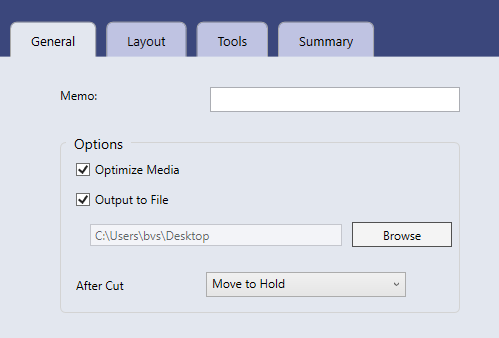
- Inside the CutEnvironment settings, specify the path to your cutting software (e.g., “Summa Cutter Control”).
- Link CutEnvironment to PrintEnvironment
- Go to Manage > PrintEnvironment.
- Edit your PrintEnvironment and click Next until you reach the screen where you can link the CutEnvironment.
- Select the correct CutEnvironment and click Save.
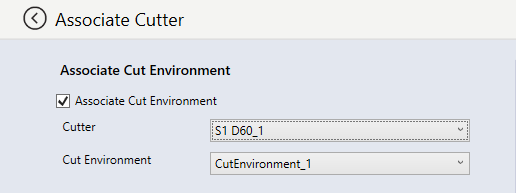
- Prepare and Send the Job
- Import a job that contains cut contours (CutContour).
- In the job settings, enable:
Crop Marks > Enable crop marks for cutters.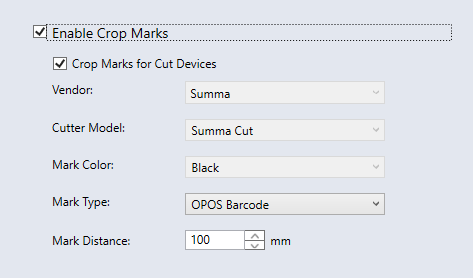
- Send Job to Printer and Cutter
- Send the job to the printer.
- A cut job will automatically be generated in the specified folder for your cutting software.
- Open your cutting software (e.g., Summa Cutter Control) to begin cutting.
? Additional Resource
Mutoh America offers a similar explanation (without environment setup):
How do I print a barcode on each cut page of a job?