
If you need to transfer your VerteLith license due to a computer failure or because the wrong printer has been paired, follow the appropriate procedure below. There are separate steps for END USER licenses and for DEALER & MAINTENANCE licenses.
TABLE OF CONTENTS
END USER LICENSES
Important Note: The End User Version of VerteLith must only be installed on the End User's computer.
End User licenses are paired with a specific computer, printer, and Mutoh Club account. Once a license is activated on a computer with a given Mutoh Club account, these are linked and cannot be transferred to another Mutoh Club account.
In other words: Do not use an End User license to test VerteLith before installing it on the actual customer's computer. The license will be permanently paired and cannot be transferred to another account later.
Note: In the event of a computer crash or failure, you can transfer the license to another computer (but not to another printer or Mutoh Club account). The number of allowed license transfers is limited to the number of licenses purchased + 2 times.
PROCEDURE:
- Ask the End User to log in to their Mutoh Club account at https://club.mutoh.co.jp/mutoh/guser
- Navigate to VerteLith > License Management.
- The License Recovery Management page will open.
- Select the license you want to transfer, fill in the Reason field, and click Delete.
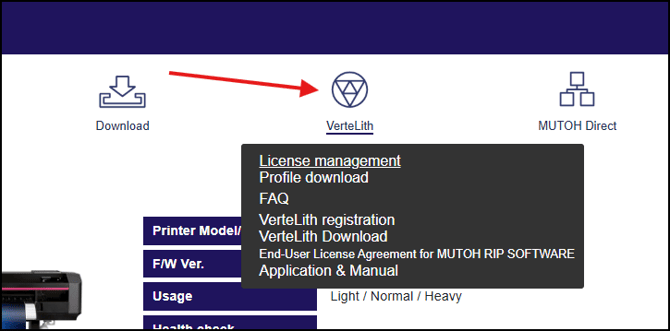
- Install VerteLith on another computer. Start VerteLith and enter the licensing information by adding a new printer.

You have now successfully transferred an End User License to a new computer.
DEALER & MAINTENANCE LICENSES
PROCEDURE:
- Log in to your Mutoh Club account at https://club.mutoh.co.jp/mutoh/user
- Go to VerteLith Info > License Management.

- Select the license you wish to transfer, fill in the Reason field, and click Delete.
- Follow the installation steps on your new computer by referencing the guide here: Installation Procedure for Dealer & Maintenance Version