
No recent searches
Popular Articles

Sorry! nothing found for
How to start a new XPJ-1341SR-P with UMS11 inks
Modified on Thu, 17 Jul, 2025 at 10:54 AM
The document describes all necessary steps to load UMS inks into a new XpertJet1341SR-Pro printer.
Please follow the procedure below in order to correctly install our UMS inks.
Required items:
- Firmware V1.05 + MSA 5.1.0 (or higher)
- High capacity ink pack adaptors: 1x VJ-HCIPADPT (1 contains 4 adaptors)
- Cleaning & Ink:
- MS31 220 ml cleaning cartridges for the initial cleaning cycle
Tables can't be imported directly. Please insert an image of your table which can be found here.
- UMS ink for XPJ-1341SR-P
Tables can't be imported directly. Please insert an image of your table which can be found here.
- UMS cleaning fluid to carry out the daily maintenance: RJ80UMS-100-CLN
Tables can't be imported directly. Please insert an image of your table which can be found here.
Important
Please make sure to order the High capacity ink pack adaptors, UMS ink packs and UMS maintenance cleaning fluid separately!
The Start-up cleaning liquid is shipped with every new printer.
Procedure:
- Boot the new printer in "Board Manager Mode" and update the firmware with the MSA 5.1.0.0 tool (or higher).
Tables can't be imported directly. Please insert an image of your table which can be found here.
WARNING:
If you do not use the mentioned FW-version (or higher) the boot up cycle of the printer with UMS ink will fail !!
- Boot the printer in “User Mode” and enter the initial settings (language, IP address…).
- Activate the printer.
- Reboot the printer.
- Perform the “initial cleaning – initial ink charge”:
(please consult the Start-up guide for detailed instructions on how to correctly load the cleaning/ink):


- Unpack and insert the MS31 220ml Cleaning cartridges
- After the cleaning cycle the display will show: "Wash Retry?" -> Choose No

- Insert the UMS ink packs in the high capacity pack adaptors, install them in the printer and insert the UMS smart chips.
- The "Ink Charge" with the UMS inks will be initiated.
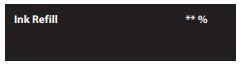
- Once the ink has been loaded, following message will appear (ink charging cycle is completed): "Media End".
Important INFO:
Incorporated V1.05 boundaries to use UMS ink on XPJ-1341SR-P
- UMS jetting is implemented for head height ‘Middle’ only.
Jetting for other head heights is not implemented.
To avoid operator mistake, FW 1.05 invites the operator to put the head height to Middle before it starts printing. The message "Change Head Gap Middle" will be prompted before printing.
This restriction only applies to normal printing in user Mode. Internal pattern printing (user mode) and any printing in Self-Diagnosis Mode will be performed with any head height setting.
- UMS jetting is implemented for the large drop family only (VSD1). VSD1 is used for all printing performed in User Mode and Self-Diagnosis Mode including internal pattern printing. No restrictions applied.
!! Do not forget to perform the Adjustments in Diagnostics mode for “VSD1” and head height “Middle” !!
Notes for Uni/BI Dir adjustment patterns:
- Adjustment pattern for VSD2/VSD3 is also printed with VSD1 (User Mode / Self Diagnosis Mode).
- If the adjustment pattern for PG LOW or HIGH is selected, the head height needs to be set to the selected head height (Self Diagnosis Mode)
Was this article helpful?
That’s Great!
Thank you for your feedback
Sorry! We couldn't be helpful
Thank you for your feedback
Let us know how can we improve this article!
Feedback sent
We appreciate your effort and will try to fix the article
X