
No recent searches
Popular Articles

Sorry! nothing found for
XPJ-1641SR-P v1.11
Modified on Fri, 7 Nov, 2025 at 8:50 AM
Necessary tools
In order to be able to install firmware, the following tools are required:
- Personal computer with MS Windows
- Network cable to connect the XpertJet with the pc
- The latest MSA-tool (Mutoh Service Assistance) or MSM-tool (Mutoh Status Monitor)
Detailed instructions how to install the firmware, are described in the maintenance manual.
The latest current firmware can be downloaded below this article.
Current version 1.11
** Make sure when updating to F/W Main Ver1.11 or higher to use MSA tool Ver.6.0.6 higher.
Bug fix:
- Backup parameters may not be saved to non-volatile memory after ink charge.
- When printing data created with Fiery's RIP, missing dots and misaligned printing of specific colors occur.
Changes:
- The system will be changed to keep the power on so that the power does not turn off for long periods of time.
The power button will switch the device to sleep mode and return it to sleep mode, and power off will be done from the Settings > Power Off menu. See TIB 877. - If no printing operation is performed for the set time, the printer will automatically enter sleep mode.
In the Sleep Mode menu, select "Auto Sleep Timer" to set the time until the printer enters sleep mode from 4, 8, 12, or 24 hours. (Default: 4 hours) - The default values for "auto cleaning" and "cleaning during sleep mode" will be changed.
- Autocleaning (Standby) ==> CL Type : Spitting -> Spitting (Even if it was set to something other than Spitting before the update, it will be changed to Spitting after the update.)
Waiting Time : 360min (MS31), 120min (MS51) - Sleep Mode ==> CL type : Spitting -> Short CL
Cleaning Timer : 3H -> 7days (MS31), 3days (MS51)
- Autocleaning (Standby) ==> CL Type : Spitting -> Spitting (Even if it was set to something other than Spitting before the update, it will be changed to Spitting after the update.)
- The behavior after waking up from sleep mode will change (MS51only):
When waking up from sleep mode, if more than 120 minutes have passed since the most recent cleaning, cleaning will be performed.
The cleaning type performed will be the cleaning type set in sleep mode. However, if spitting is set, short cleaning will be performed. - If auto cleaning cannot be performed due to the cover being open or some other error, the print head nozzles may become clogged.
To prevent a long period of time from passing without being able to perform maintenance operations such as auto cleaning, the printer will display an error message and beep to notify the user. - If the power was left on for 24 hours, backup parameters, including the "Printer Usage" log, were sometimes not recorded in memory. Backup parameters are now recorded in memory on a 24-hour cycle.
- Previously, in power saving mode, the vacuum fan was fixed to stop when the standby heat timed out. However, if there is communication to periodically check the printer status, such as VerteLith, the printer cannot switch to power saving mode. This will be changed so that the vacuum fan also stops when the heater is turned off.
V1.10
Changes:
- Users may mistake "Longstore" for a stronger version of cleaning and perform "Longstore" in user mode. The printer will be left in an unfilled state and will be difficult to recover from.
- Before "Longstore" is performed, a message will be displayed on the panel indicating that a cleaning cartridge is required.
- Before "Longstore" is performed, make it possible to exit the menu by pressing the Cancel key. - Change the status display on MSM during soak cleaning from "Cleaning" to "Soak cleaning".
- When the ink status "[**] Check color" message was displayed, the status LED on the panel was lit green.
Bug fixes:
- When an ink-related error occurs, the "soak cleaning" process starts, and the panel becomes inoperable during the process.
- The backlight of the control panel keys may flickers momentarily while the setting screen is displayed.
"[**] Check color" is the same as error. Therefore, it has been changed to light up a red status LED. - When the smart chip terminal short circuit occurs due to the misalignment of the smart chip card attachment position on the ink cartridge, the chip recovery may not function and an I/C error may occur.
Fixed chip recovery to work even in such cases. - Ink-related warning messages are not displayed correctly in Western European language settings.
- If the display language setting is changed while a warning message is displayed on the main panel, unintended characters may be mixed in with the warning message immediately after the change.
- When the origin setting is complete, the "Cover open" message disappears. The message now continues to be displayed.
Installed Ver 1.10 Serial number:
XPJ-1641SR-P : KF6U001659~
v1.09
Bug fix:
1/ There was a problem with the "head soak" cleaning cycle that was added in the previous version.
- When performing the soak cleaning process while a media error (e.g. no media) is displayed, the carriage moves to the left and then immediately returns to the cap-in position.
- When pressing Enter with the cleaning solution filled into the cap, the soak time is entered after cap-in, but the process of sucking up the cleaning solution occurs when the cap is in. This means that the cleaning solution inside the cap is drained and the print head is not soaked.
- When entering the soak time, if the set time is not confirmed, the process does not move to the next step. At this time the cap is in a soaking state, but because the soaking time is not being counted, it is not recorded in the log.
2/ In some cases cleaning cannot be performed from the remote panel.
Installed Ver 1.09 Serial number:
XPJ-1641SR-P : KF6U001589~
v1.08
Changes:
1. Added the message that the media cannot be cut when media detection setting is "OFF".
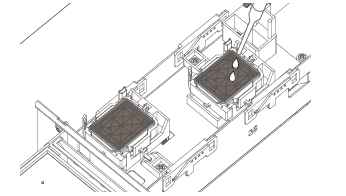
2. Added a "head soak" procedure in user mode (Menu 12: Soak clenaing)
This procedure can be used to soak the head in the cap when nozzles remain misfiring or missed.
3. Using certain antivirus software packages sometimes caused a CPU error: this is is now fixed.
Installed Ver 1.08 Serial number:
XPJ-1641SR-P : KF6U001479~
v1.07
Changes:
1/ Added patterns for head slant adjustment.
These patterns may improve the accuracy of head tilt adjustment and improve print quality.
New patterns (Self-diagnosis mode>Adjustment>Head Slant)
Slant V-1
Slant V-2
A high magnification loupe(x200~x400 e.g. Digital loupe) is required for adjust with these patterns.
2/ Acceleration of paper feed during printing can be changed
This is a useful feature if slippery media is used.
New setting (Self-diagnosis mode>Parameter>Update>PF Acc.)
"Normal":Default
"Low": Low acceleration
*Note the impact on throughput.
Installed Ver 1.07 Serial number:
XPJ-1641SR-P : KF6U001069~
v1.06
Bugfixes:
1/ The added "spitting" feature in Auto cleaning> Standby in FW1.05 did not work correctly. The amount of ink spit was too low resulting in an ink mix in printing after this spitting: This is now solved.
Installed Ver 1.06 Serial number:
XPJ-1641SR-P : KF6U000868~
v1.05
Updating to F/W Ver1.04 requires MSA tool Ver.5.1.2 or higher.
1/ New sequence to avoid collision of the cursor into the capping station.
When the carriage returns to the home position it slows down when approaching the cap slider. The carriage makes soft contact with the cap slider just enough to release it in case it would be stuck in a too high position. After this initial contact the carriage is moved back slightly before moving to the final home position allowing a good capping in of the capping station.
2/ An error may occur in the skew check after media cutting. Increased feed amount after media cut.
3/ Added "spitting" in "Auto cleaning > Standby". The default value is "spitting/180 minutes" .
Bugfixes:
1/ The print area calculation was incorrect under following conditions:
* 600x1200, 4510x900, 300x600 print modes
* The length information is not added to the print data
* Printing via Port 9100
2/ The drop sensor mistakenly detects that it is constantly being discharged: fixed
Installed Ver 1.05 Serial number:
XPJ-1641SR-P : KF6U000868
v1.04
Updating to F/W Ver1.04 requires MSA tool Ver.5.1.1 or higher.
Important Notes:
|
1. Three new print effects: i-ScreenFineL – i-ScreenFineM – i-ScreenFineH
- The ‘L’, ‘M’ and ‘H’ stand for ‘Low’, ‘Medium’ and ‘High’ intensity weaving.
Lower intensity prints faster and gives lower banding suppression.
Higher intensity prints slower and gives most banding suppression. - The previous print effects remain available in the firmware.
The new ones, however, will become the first choice & Mutoh’s recommendation.
2. Profiling guidelines:
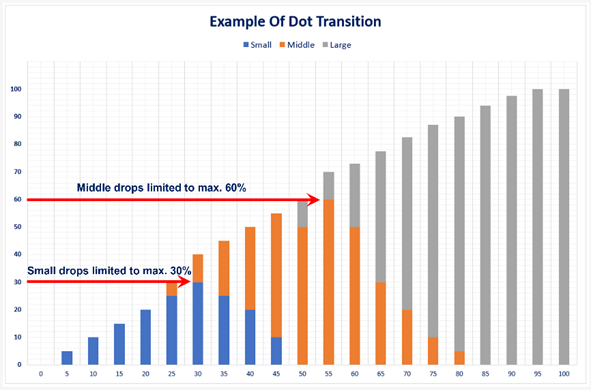
To obtain best results, Mutoh also wants to promote specific dot distribution/transition settings for variable drop profiling.
These settings control the balance among small, medium and large drops for a certain target output density.
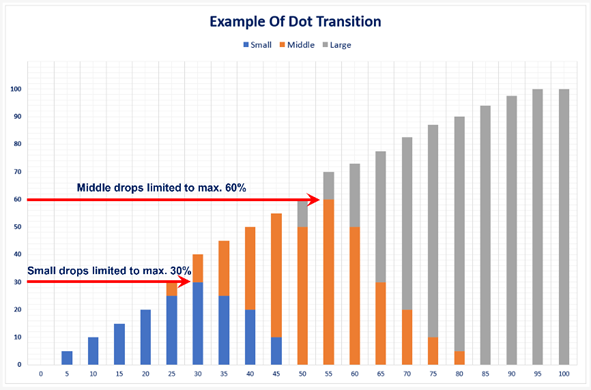
- Small drop limit: max. 30%.
- Middle drop limit: max. 60%.
- Large drop limit: max. 100%.
The impact of this setting is illustrated in the graph below.
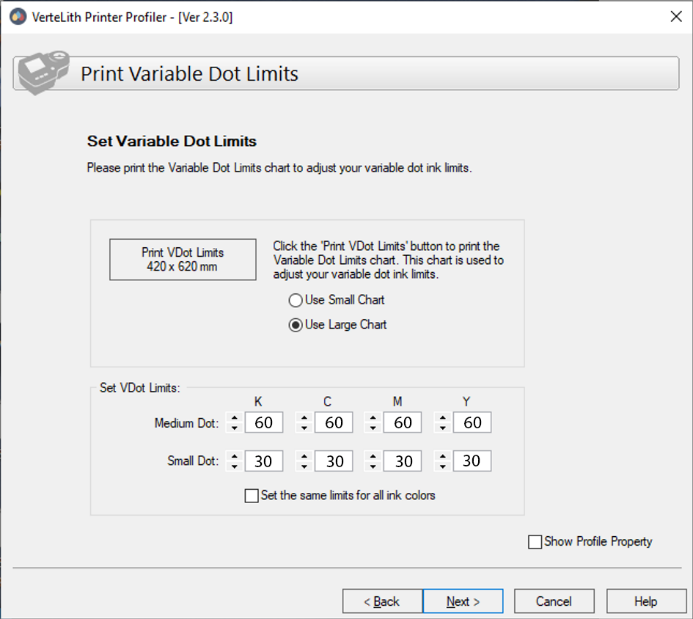
In VerteLith V5.1.0, using the latest Profiler version (V2.4.0), the screen to adjust the variable dot limits is shown in the illustration below:
|
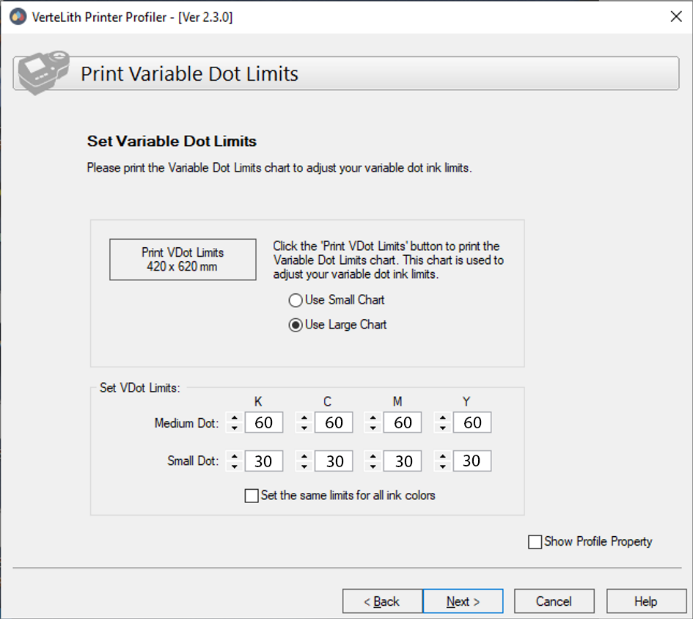
- Where possible, the recommended starting values are pre-filled.
- For cases where Mutoh recommends to eliminate a drop size, a value of ‘2’ is prefilled.
To completely eliminate a drop size, it needs to be manually set to ‘0’ (zero).
Resolution |
Wave Form & Dot transition recommendation |
Effect |
CR speed |
Print Direction |
Speed [m²/h] |
600x600 |
VSD1-Variable |
Fine&Fog 3 |
360cps |
Bi-d |
15.54 |
iScreen Fine L |
360cps |
Bi-d |
11.16 |
||
600x900 |
VSD1-Variable |
iScreen Fine L |
360cps |
Bi-d |
11.02 |
iScreen Fine M |
360cps |
Bi-d |
8.84 |
||
iScreen Fine H |
360cps |
Bi-d |
7.32 |
||
900x900 |
VSD3-Variable |
iScreen Fine L |
360cps |
Bi-d |
6.25 |
900x1200 |
VSD3-Variable |
iScreen Fine L |
360cps |
Bi-d |
5.56 |
iScreen Fine M |
360cps |
Bi-d |
4.53 |
||
iScreen Fine H |
360cps |
Bi-d |
3.65 |
||
1200x1200 |
VSD3-Variable |
iScreen Fine L |
360cps |
Bi-d |
4.25 |
4. New wave form for ink fly suppression:
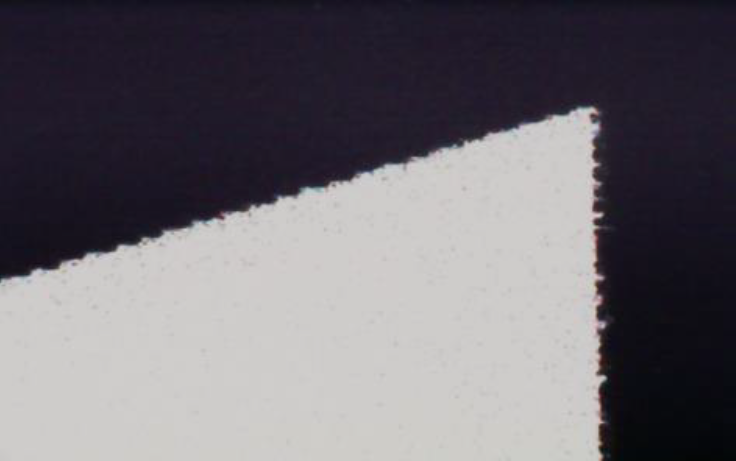
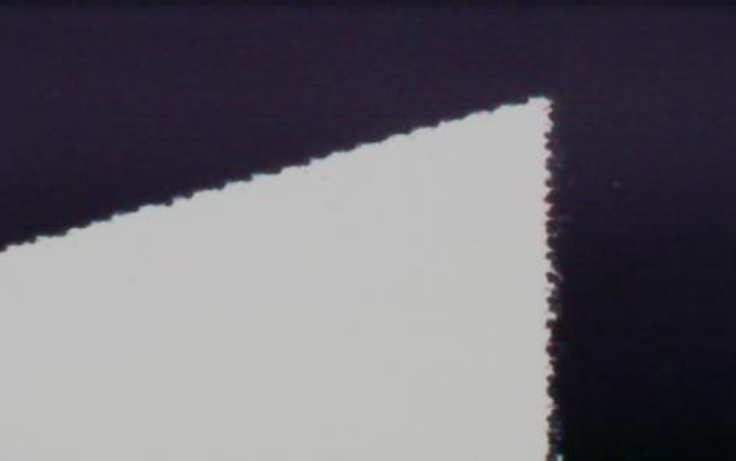
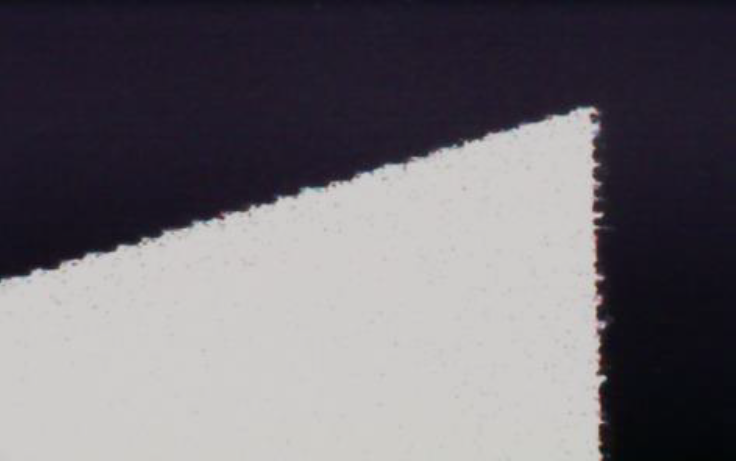
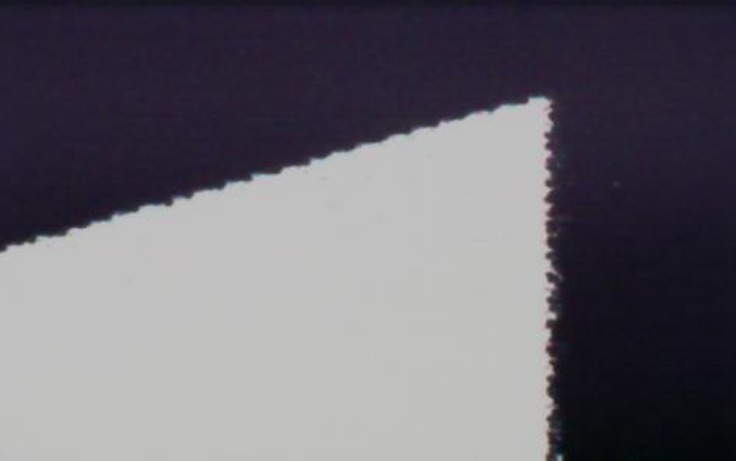
- Mutoh has noticed that a combination of circumstances (print conditions as well as environmental conditions) may cause ink-fly (mist) occurring over the print surface as well as in the margins. In case you observe ink-fly on a printer, please choose the new ‘Type B’ Waveform to suppress the ink-fly.
- Since the Waveform Type selection has a slight impact on the generated drop masses, operators may observe a slight colour shift when changing to the new waveform selection.
The improved behaviour is shown in the illustrations below.
Situation with ink-fly occuring using Type A waveform |
Same print/environmental conditions using Type B waveform |
 |
 |
4.1 The new waveform setting can be found in the diagnostics mode under menu: Parameter > Update > WF . Type
4.2 Possible wave form selections: Type A and Type B.
4.3 If a waveform is selected, it is applicable for:
- New machines being installed.
- Installed base machines upgraded from a lower F/W version.
4.4 The waveform defaults are determined by the ink choice:
Ink Type |
Default waveform |
MS41 |
Type A |
MS51 |
Type B |
UMS11 |
Type B |
Important: When addressing a case of ink-fly (mist) occurrence in combination with MS41 ink, please remember that Type B always needs to be set manually. |
4.5 Type B setting has an impact only on the jetting behavior when using ‘LOW2’ head height.
4.6 The impact of ‘Type B’ selection is limited to following drop families:
- MS41 Ink: VSD1 and VSD3
- MS51 Ink: VSD1
- UMS Ink: VSD1
- For all other ink-drop family combinations ‘Type B’ behaves exactly like ‘Type A’.
5. Overview XPJ-1641SR-P - Ink Type - Head Height - Drop Family - Waveform Compatibility
Waveform Selection |
||||
Ink Type |
Head Height |
Drop Family |
Waveform Selection A |
Waveform Selection B |
MS41 |
Low 1 |
VSD1 |
Waveform A |
Waveform A |
MS41 |
Low 1 |
VSD3 |
Waveform A |
Waveform A |
MS41 |
Low 1 |
VSD4 (1) |
Waveform A |
Waveform A |
MS41 |
Low2 |
VSD1 |
Waveform A |
New Waveform |
MS41 |
Low2 |
VSD3 |
Waveform A |
New Waveform |
MS41 |
Middle |
Any |
Waveform A |
Waveform A |
MS41 |
High |
Any |
Waveform A |
Waveform A |
MS51 |
Low 1 |
VSD1 |
Waveform A |
Waveform A |
MS51 |
Low 1 |
VSD3 |
Waveform A |
Waveform A |
MS51 |
Low2 |
VSD1 |
Waveform A |
New Waveform |
MS51 |
Low2 |
VSD3 |
Waveform A |
Waveform A |
MS51 |
Middle |
Any |
Waveform A |
Waveform A |
MS51 |
High |
Any |
Waveform A |
Waveform A |
UMS (2) |
Low2 (2) |
VSD1 (2) |
Waveform A |
New Waveform |
(1) The VSD4 drop family is intended only for MS41 ink in combination with LOW1 head height. (2) The use of UMS ink is reserved to LOW2 head height in combination with VSD1. Cells marked Green indicate the default setting. |
||||
6. Bugfixes:
1/ When the *IP4 c ommand is output in bi-directional printing in 600x900dpi mode, the image shifts and appears double: This is now fixed.
2/ The value of "360cps VSD3" is not updated when parameters are entered and confirmed from the Self-Diagnosis>Adjustment>Uni-D ALL Setup menu: This is now fixed.
7. Other changes:
1/ With the addition of VSD4, it is now possible to input adjustment values for pattern G (VSD4-320cps) and pattern H (VSD4-360cps) for adjustment printing from the remote panel.
2/ "Automatic print settings" has been added to the remaining roll paper management menu in order to streamline operations up to barcode printing for remaining roll paper management.
If "Auto Print Settings" is set to ON, "Do you want to print the remaining amount?" is displayed after cutting the media.
If "Yes" is selected, the barcode is printed after media cutting.
3/ The head ID of the I1600 head has been changed so that values other than "0" are entered in the 1st and 38th digits due to the change in print head specifications.
It does not affect the waveform.
v1.03
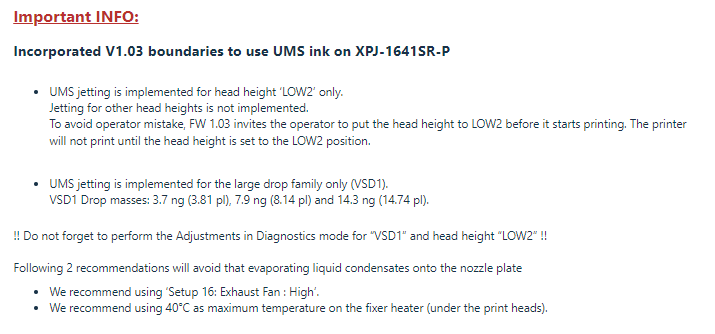
Changes:
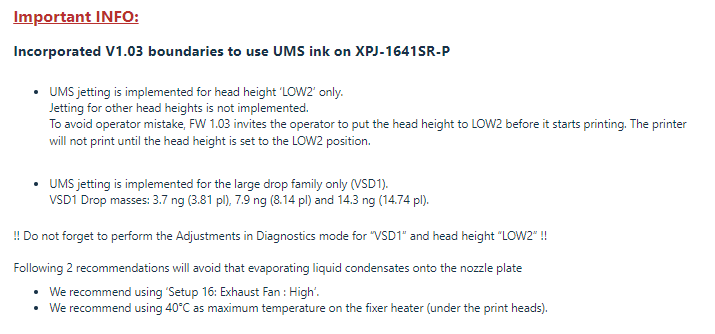
1. Support for UMS11 ink type.
2. Revised drop mass details for MS41 and UMS.
Please click here for more info.
Installed Ver 1.03 Serial number:
XPJ-1641SR-P : KF6U000560
Important note:
When updating towards firmware version v1.03, make sure to use MSA tool Ver.5.0.9.0 or higher
Please make sure to use heater FW 7.01 or higher on this model.
v1.02 (this version was never released)
1. Support for MS51 ink type.
v1.01
Bug Fixes:
1. The setting made from the panel with the menu of "Self-diagnosis> Parameters> Update> UniD/BiD", was not saved: this is now fixed.
* This error does not occur when adjusting with the "Adjustment> Uni / Bi" menu.
2. Even if the alert buzzer is set to off, pressing a key is requested when the ink near end or ink end condition comes: this is now fixed not to request it.
3. If the cancel key is pressed just before the printhead is capped in, all keys become invalid except the main switch: this is now fixed.
4. The item number of a menu was incorrect when printing the setup list: It is fixed from [25] Heater Ctrl to [24] Heater Ctrl.
5. A loud sound generated with a high-speed movement of the CR, after power-on flushing when PG is in the High position: this is now fixed.
Changes:
1. The periodically displayed "Perform Adjust Print" message is no longer displayed.
2. The total operating time of the Auto UniD / BiD adjustment or Auto PF adjustment has been reduced as follows;
[Auto UniD / BiD] From 14:53 to 06:26
[Auto PF adjustment] From 01:22 to 00:56
3. Improved jetting wave form for Large (VSD1) and Middle (VSD2) drop families.
Mist reduction when using MS41 in combination with the Middle and High head heights.
4. Improved jetting wave form for small drop family (VSD3). Image noise reduction thanks to improved dot positioning.
5. The effect pattern is now changed under the following print conditions to improve the print quality.
Resolution: 1200x1200
Waveform: VSD3
Effect: i-Screen4~6
Installed Ver 1.01 Serial number:
XPJ-1641SR-P : KF6U000318~
Important note:
When updating towards firmware version v1.02, make sure to use MSA tool Ver.5.0.9.0 or higher
Please make sure to use heater FW 7.01 or higher on this model.
v1.00
First firmware release
Necessary tools
In order to be able to install firmware, the following tools are required:
Detailed instructions how to install the firmware, are described in the maintenance manual.
The latest current firmware can be downloaded below this article.
Current version 1.11
** Make sure when updating to F/W Main Ver1.11 or higher to use MSA tool Ver.6.0.6 higher.
Bug fix:
- Backup parameters may not be saved to non-volatile memory after ink charge.
- When printing data created with Fiery's RIP, missing dots and misaligned printing of specific colors occur.
Changes:
- The system will be changed to keep the power on so that the power does not turn off for long periods of time.
The power button will switch the device to sleep mode and return it to sleep mode, and power off will be done from the Settings > Power Off menu. See TIB 877. - If no printing operation is performed for the set time, the printer will automatically enter sleep mode.
In the Sleep Mode menu, select "Auto Sleep Timer" to set the time until the printer enters sleep mode from 4, 8, 12, or 24 hours. (Default: 4 hours) - The default values for "auto cleaning" and "cleaning during sleep mode" will be changed.
- Autocleaning (Standby) ==> CL Type : Spitting -> Spitting (Even if it was set to something other than Spitting before the update, it will be changed to Spitting after the update.)
Waiting Time : 360min (MS31), 120min (MS51) - Sleep Mode ==> CL type : Spitting -> Short CL
Cleaning Timer : 3H -> 7days (MS31), 3days (MS51)
- Autocleaning (Standby) ==> CL Type : Spitting -> Spitting (Even if it was set to something other than Spitting before the update, it will be changed to Spitting after the update.)
- The behavior after waking up from sleep mode will change (MS51only):
When waking up from sleep mode, if more than 120 minutes have passed since the most recent cleaning, cleaning will be performed.
The cleaning type performed will be the cleaning type set in sleep mode. However, if spitting is set, short cleaning will be performed. - If auto cleaning cannot be performed due to the cover being open or some other error, the print head nozzles may become clogged.
To prevent a long period of time from passing without being able to perform maintenance operations such as auto cleaning, the printer will display an error message and beep to notify the user. - If the power was left on for 24 hours, backup parameters, including the "Printer Usage" log, were sometimes not recorded in memory. Backup parameters are now recorded in memory on a 24-hour cycle.
- Previously, in power saving mode, the vacuum fan was fixed to stop when the standby heat timed out. However, if there is communication to periodically check the printer status, such as VerteLith, the printer cannot switch to power saving mode. This will be changed so that the vacuum fan also stops when the heater is turned off.
** Make sure when updating to F/W Main Ver1.11 or higher to use MSA tool Ver.6.0.6 higher.
Bug fix:
- Backup parameters may not be saved to non-volatile memory after ink charge.
- When printing data created with Fiery's RIP, missing dots and misaligned printing of specific colors occur.
Changes:
- The system will be changed to keep the power on so that the power does not turn off for long periods of time.
The power button will switch the device to sleep mode and return it to sleep mode, and power off will be done from the Settings > Power Off menu. See TIB 877. - If no printing operation is performed for the set time, the printer will automatically enter sleep mode.
In the Sleep Mode menu, select "Auto Sleep Timer" to set the time until the printer enters sleep mode from 4, 8, 12, or 24 hours. (Default: 4 hours) - The default values for "auto cleaning" and "cleaning during sleep mode" will be changed.
- Autocleaning (Standby) ==> CL Type : Spitting -> Spitting (Even if it was set to something other than Spitting before the update, it will be changed to Spitting after the update.)
Waiting Time : 360min (MS31), 120min (MS51) - Sleep Mode ==> CL type : Spitting -> Short CL
Cleaning Timer : 3H -> 7days (MS31), 3days (MS51)
- Autocleaning (Standby) ==> CL Type : Spitting -> Spitting (Even if it was set to something other than Spitting before the update, it will be changed to Spitting after the update.)
- The behavior after waking up from sleep mode will change (MS51only):
When waking up from sleep mode, if more than 120 minutes have passed since the most recent cleaning, cleaning will be performed.
The cleaning type performed will be the cleaning type set in sleep mode. However, if spitting is set, short cleaning will be performed. - If auto cleaning cannot be performed due to the cover being open or some other error, the print head nozzles may become clogged.
To prevent a long period of time from passing without being able to perform maintenance operations such as auto cleaning, the printer will display an error message and beep to notify the user. - If the power was left on for 24 hours, backup parameters, including the "Printer Usage" log, were sometimes not recorded in memory. Backup parameters are now recorded in memory on a 24-hour cycle.
- Previously, in power saving mode, the vacuum fan was fixed to stop when the standby heat timed out. However, if there is communication to periodically check the printer status, such as VerteLith, the printer cannot switch to power saving mode. This will be changed so that the vacuum fan also stops when the heater is turned off.
** Make sure when updating to F/W Main Ver1.11 or higher to use MSA tool Ver.6.0.6 higher.
Bug fix:
Changes:
Installed Ver 1.11 Serial number:
The power button will switch the device to sleep mode and return it to sleep mode, and power off will be done from the Settings > Power Off menu. See TIB 877 .
In the Sleep Mode menu, select "Auto Sleep Timer" to set the time until the printer enters sleep mode from 4, 8, 12, or 24 hours. (Default: 4 hours)
Waiting Time : 360min (MS31), 120min (MS51)
Cleaning Timer : 3H -> 7days (MS31), 3days (MS51)
When waking up from sleep mode, if more than 120 minutes have passed since the most recent cleaning, cleaning will be performed.
The cleaning type performed will be the cleaning type set in sleep mode. However, if spitting is set, short cleaning will be performed.
To prevent a long period of time from passing without being able to perform maintenance operations such as auto cleaning, the printer will display an error message and beep to notify the user.
V1.10
Changes:
Bug fixes:
Installed Ver 1.10 Serial number:
XPJ-1641SR-P : KF6U001659~
v1.09
- Before "Longstore" is performed, a message will be displayed on the panel indicating that a cleaning cartridge is required.
- Before "Longstore" is performed, make it possible to exit the menu by pressing the Cancel key.
"[**] Check color" is the same as error. Therefore, it has been changed to light up a red status LED.
Fixed chip recovery to work even in such cases.
Bug fix:
1/ There was a problem with the "head soak" cleaning cycle that was added in the previous version.
- When performing the soak cleaning process while a media error (e.g. no media) is displayed, the carriage moves to the left and then immediately returns to the cap-in position.
- When pressing Enter with the cleaning solution filled into the cap, the soak time is entered after cap-in, but the process of sucking up the cleaning solution occurs when the cap is in. This means that the cleaning solution inside the cap is drained and the print head is not soaked.
- When entering the soak time, if the set time is not confirmed, the process does not move to the next step. At this time the cap is in a soaking state, but because the soaking time is not being counted, it is not recorded in the log.
2/ In some cases cleaning cannot be performed from the remote panel.
Installed Ver 1.09 Serial number:
XPJ-1641SR-P : KF6U001589~
v1.08
Changes:
1. Added the message that the media cannot be cut when media detection setting is "OFF".
2. Added a "head soak" procedure in user mode (Menu 12: Soak clenaing)
This procedure can be used to soak the head in the cap when nozzles remain misfiring or missed.
3. Using certain antivirus software packages sometimes caused a CPU error: this is is now fixed.
Installed Ver 1.08 Serial number:
XPJ-1641SR-P : KF6U001479~
v1.07
Changes:
1/ Added patterns for head slant adjustment.
These patterns may improve the accuracy of head tilt adjustment and improve print quality.
New patterns (Self-diagnosis mode>Adjustment>Head Slant)
Slant V-1
Slant V-2
A high magnification loupe(x200~x400 e.g. Digital loupe) is required for adjust with these patterns.
2/ Acceleration of paper feed during printing can be changed
This is a useful feature if slippery media is used.
New setting (Self-diagnosis mode>Parameter>Update>PF Acc.)
"Normal":Default
"Low": Low acceleration
*Note the impact on throughput.
Installed Ver 1.07 Serial number:
XPJ-1641SR-P : KF6U001069~
v1.06
Bugfixes:
1/ The added "spitting" feature in Auto cleaning> Standby in FW1.05 did not work correctly. The amount of ink spit was too low resulting in an ink mix in printing after this spitting: This is now solved.
Installed Ver 1.06 Serial number:
XPJ-1641SR-P : KF6U000868~
v1.05
 v1.0701 August 202320 April 2023Installed Ver 1.06 Serial number:v1.05
13 February 2023Ver.5.1.2Added feature:Bugfixes:
Installed Ver 1.05 Serial number:
v1.04
Updating to F/W Ver1.04 requires MSA tool Ver.5.1.1 or higher.
Ver.5.1.1Tables can't be imported directly. Please insert an image of your table which can be found here.
Important Notes:
December 2022.
This depends on the serial number of the printer.
Details about this can be found in the article dedicated to this topic: "XPJ-1641SR-P: paper feed grid roller fluctuation reduction kit"
Lower intensity prints faster and gives lower banding suppression.
Higher intensity prints slower and gives most banding suppression.
The new ones, however, will become the first choice & Mutoh’s recommendation.
2. Profiling guidelines:
To obtain best results, Mutoh also wants to promote specific dot distribution/transition settings for variable drop profiling.
These settings control the balance among small, medium and large drops for a certain target output density.
The impact of this setting is illustrated in the graph below.
In VerteLith V5.1.0, using the latest Profiler version (V2.4.0), the screen to adjust the variable dot limits is shown in the illustration below:
Tables can't be imported directly. Please insert an image of your table which can be found here.
Tables can't be imported directly. Please insert an image of your table which can be found here.
To completely eliminate a drop size, it needs to be manually set to ‘0’ (zero).
3. Overview print modes recommended by Mutoh:
Tables can't be imported directly. Please insert an image of your table which can be found here.
Resolution
Wave Form & Dot transition recommendation
Effect
CR speed
Print Direction
Speed [m²/h]
600x600
VSD1-Variable
S-Dots (max. 30%).M-Dots (max. 60%).L-Dots (max. 100%)
Fine&Fog 3
360cps
Bi-d
15.54
iScreen Fine L
360cps
Bi-d
11.16
600x900
VSD1-Variable
S-Dots (max. 30%).M-Dots (max. 60%).L-Dots (max. 100%)
iScreen Fine L
360cps
Bi-d
11.02
iScreen Fine M
360cps
Bi-d
8.84
iScreen Fine H
360cps
Bi-d
7.32
900x900
VSD3-Variable
S-Dots (max. 30%).M-Dots (max. 60%).L-Dots (max. 100%)
iScreen Fine L
360cps
Bi-d
6.25
900x1200
VSD3-Variable
S-Dots (max. 30%).M-Dots (max. 60%).L-Dots (max. 100%)
iScreen Fine L
360cps
Bi-d
5.56
iScreen Fine M
360cps
Bi-d
4.53
iScreen Fine H
360cps
Bi-d
3.65
1200x1200
VSD3-Variable
S-Dots (max. 30%).M-Dots (max. 60%).L-Dots (max. 100%)
iScreen Fine L
360cps
Bi-d
4.25
4. New wave form for ink fly suppression:
The improved behaviour is shown in the illustrations below.
Tables can't be imported directly. Please insert an image of your table which can be found here.
4.1 The new waveform setting can be found in the diagnostics mode under menu: Parameter > Update > WF . Type
4.2 Possible wave form selections: Type A and Type B.
4.3 If a waveform is selected, it is applicable for:
Situation with ink-fly occuring using Type A waveform
Same print/environmental conditions using Type B waveform
Tables can't be imported directly. Please insert an image of your table which can be found here.
Tables can't be imported directly. Please insert an image of your table which can be found here.
4.5 Type B setting has an impact only on the jetting behavior when using ‘LOW2’ head height.
4.6 The impact of ‘Type B’ selection is limited to following drop families:
Ink Type
Default waveform
MS41
Type A
MS51
Type B
UMS11
Type B
Important:
When addressing a case of ink-fly (mist) occurrence in combination with MS41 ink, please remember that Type B always needs to be set manually.
5. Overview XPJ-1641SR-P - Ink Type - Head Height - Drop Family - Waveform Compatibility
Tables can't be imported directly. Please insert an image of your table which can be found here.
Waveform Selection
Ink Type
Head Height
Drop Family
Waveform Selection A
Waveform Selection B
MS41
Low 1
VSD1
Waveform A
Waveform A
MS41
Low 1
VSD3
Waveform A
Waveform A
MS41
Low 1
VSD4 (1)
Waveform A
Waveform A
MS41
Low2
VSD1
Waveform A
New Waveform
MS41
Low2
VSD3
Waveform A
New Waveform
MS41
Middle
Any
Waveform A
Waveform A
MS41
High
Any
Waveform A
Waveform A
MS51
Low 1
VSD1
Waveform A
Waveform A
MS51
Low 1
VSD3
Waveform A
Waveform A
MS51
Low2
VSD1
Waveform A
New Waveform
MS51
Low2
VSD3
Waveform A
Waveform A
MS51
Middle
Any
Waveform A
Waveform A
MS51
High
Any
Waveform A
Waveform A
UMS (2)
Low2 (2)
VSD1 (2)
Waveform A
New Waveform
(1) The VSD4 drop family is intended only for MS41 ink in combination with LOW1 head height.
When sending VSD4 data to a printer loaded with MS51 ink, the printer will jet VSD1 drops.
(2) The use of UMS ink is reserved to LOW2 head height in combination with VSD1.
Cells marked Green indicate the default setting.
6. Bugfixes:1/ 2/7. Other changes:1/2/
3/
v1.03
Changes:
1. Support for UMS11 ink type.
2. Revised drop mass details for MS41 and UMS.
Please click here for more info.
Installed Ver 1.03 Serial number:
XPJ-1641SR-P : KF6U000560
Important note:
When updating towards firmware version v1.03, make sure to use MSA tool Ver.5.0.9.0 or higher
Please make sure to use heater FW 7.01 or higher on this model.
v1.02 (this version was never released)
1. Support for MS51 ink type.
v1.01
05 July 2022 29 March 2022
Bug Fixes:
1. The setting made from the panel with the menu of "Self-diagnosis> Parameters> Update> UniD/BiD", was not saved: this is now fixed.
* This error does not occur when adjusting with the "Adjustment> Uni / Bi" menu.
2. Even if the alert buzzer is set to off, pressing a key is requested when the ink near end or ink end condition comes: this is now fixed not to request it.
3. If the cancel key is pressed just before the printhead is capped in, all keys become invalid except the main switch: this is now fixed.
4. The item number of a menu was incorrect when printing the setup list: It is fixed from [25] Heater Ctrl to [24] Heater Ctrl.
5. A loud sound generated with a high-speed movement of the CR, after power-on flushing when PG is in the High position: this is now fixed.
Changes:
1. The periodically displayed "Perform Adjust Print" message is no longer displayed.
2. The total operating time of the Auto UniD / BiD adjustment or Auto PF adjustment has been reduced as follows;
[Auto UniD / BiD] From 14:53 to 06:26
[Auto PF adjustment] From 01:22 to 00:56
3. Improved jetting wave form for Large (VSD1) and Middle (VSD2) drop families.
Mist reduction when using MS41 in combination with the Middle and High head heights.
4. Improved jetting wave form for small drop family (VSD3). Image noise reduction thanks to improved dot positioning.
5. The effect pattern is now changed under the following print conditions to improve the print quality.
Resolution: 1200x1200
Waveform: VSD3
Effect: i-Screen4~6
Installed Ver 1.01 Serial number:
XPJ-1641SR-P : KF6U000318~
Important note:
When updating towards firmware version v1.02, make sure to use MSA tool Ver.5.0.9.0 or higher
Please make sure to use heater FW 7.01 or higher on this model.
v1.00
First firmware release
20 January 2022
Attachments (1)
XPJ1641SR-P_V111.zip
2.01 MB
Was this article helpful?
That’s Great!
Thank you for your feedback
Sorry! We couldn't be helpful
Thank you for your feedback
Let us know how can we improve this article!
Feedback sent
We appreciate your effort and will try to fix the article
X