
No recent searches
Popular Articles

Sorry! nothing found for
How to start a new XPJ-1641SR-P with UMS11 ink
Modified on Thu, 17 Jul, 2025 at 10:54 AM
The document describes all necessary steps to load UMS inks into a new XpertJet 1641SR-Pro printer.
Please follow the procedure below in order to correctly install our UMS inks.
Required items:
- Firmware V1.03 + MSA 5.0.9.0 (or higher)
- Spitting box absorbent for UMS ink: “IJ-FLABS-01” (to be ordered separately)
- Cleaning & Ink:
- MS41 300 ml cleaning packs (MS41-CL300E)
Tables can't be imported directly. Please insert an image of your table which can be found here.
- UMS ink for XpertJet-Pro
Tables can't be imported directly. Please insert an image of your table which can be found here.
- UMS cleaning fluid to carry out the daily maintenance: RJ80UMS-100-CLN
Tables can't be imported directly. Please insert an image of your table which can be found here.
Important
Please make sure to order the spitting box absorbent (IJ-FLABS-01), the UMS ink packs and UMS maintenance cleaning fluid separately!
The Start-up cleaning liquid is shipped with every new printer.
Procedure:
- Boot the new printer in "Board Manager Mode" and update the firmware with the MSA 5.0.9.0 tool (or higher). Do NOT use the MSM - Mutoh Status Monitor: this will not work here!
Tables can't be imported directly. Please insert an image of your table which can be found here.
WARNING:
If you do not use the mentioned FW-version (or higher) the boot up cycle of the printer with UMS ink will fail !!
- Boot the printer in “User Mode” and enter the initial settings (language, IP address…).
- Activate the printer.
- Reboot the printer.
- Exchange the spitting box absorbent with a spitting box absorbent for UMS ink: " IJ-FLABS-01".
- Perform the “initial cleaning – initial ink charge”:
(please consult the Start-up guide for detailed instructions on how to load correctly the cleaning/ink in the ink packs):


- Unpack and insert the MS41 300ml Cleaning packs and MS41 cleaning smart cards
- Use the MS41 cleaner 300 ml smart chips to perform the wash cycle.
- The display will show: "Wash Retry?" -> Choose No

- Insert the UMS ink packs in the ink cases, install them in the printer and insert the UMS smart chips.
- The "Ink Charge" with the UMS inks will be initiated.
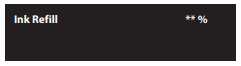
- Once the ink has been loaded, following message will appear (ink charging cycle is completed)

Important INFO:
Incorporated V1.03 boundaries to use UMS ink on XPJ-1641SR-P
- UMS jetting is implemented for head height ‘LOW2’ only.
Jetting for other head heights is not implemented.
To avoid operator mistake, FW 1.03 invites the operator to put the head height to LOW2 before it starts printing. The printer will not print until the head height is set to the LOW2 position.
- UMS jetting is implemented for the large drop family only (VSD1).
VSD1 Drop masses: 3.7 ng (3.81 pl), 7.9 ng (8.14 pl) and 14.3 ng (14.74 pl).
!! Do not forget to perform the Adjustments in Diagnostics mode for “VSD1” and head height “LOW2” !!
Following 2 recommendations will avoid that evaporating liquid condensates onto the nozzle plate
- We recommend using ‘Setup 16: Exhaust Fan : High’.
- We recommend using 40°C as maximum temperature on the fixer heater (under the print heads).
Was this article helpful?
That’s Great!
Thank you for your feedback
Sorry! We couldn't be helpful
Thank you for your feedback
Let us know how can we improve this article!
Feedback sent
We appreciate your effort and will try to fix the article
X